Installation of Python
How to Install Python on Windows
Python doesn’t come prepackaged with Windows, but that doesn’t mean Windows users
won’t find the flexible programming language useful. It’s not quite a simple as
installing the newest version however, so let’s make sure you get the right tools for the
task at hand.
First released in 1991, Python is a popular high-level programming language used for
general purpose programming. Thanks to a design philosophy that emphasizes readability
it has long been a favorite of hobby coders and serious programmers alike. Not only is it
an easy language (comparatively speaking, that is) to pick up but you’ll find
thousands of projects online that require you have Python installed to use the program.
Which Version Do You Need?
Unfortunately, there was a significant update to Python several years ago that created a
big split between Python versions. This can make things a bit confusing to newcomers,
but don’t worry. We’ll walk you through installing both major versions
When you visit the Python for Windows download page, you’ll immediately see the division.
Right at the top, square and center, the repository asks if you want the latest release of
Python 2 or Python 3 (2.7.13 and 3.6.1, respectively, as of this tutorial).

On the other hand, if you’re looking to actually learn Python, we recommend installing
both versions side by side (which you can do with zero risk and only a tiny bit of setup
hassle). This lets you work with the newest version of the language, but also run older
Python scripts (and test backwards compatibility for newer projects). Comparing
the two versions is an article unto itself, though, so we’ll defer to the Python project
wiki
Maybe so, maybe not. The version you want depends on your end goal. If your goal is to
get some project that ends in a “.py” extension up and running, then there’s a very,
very good chance you’ll need 2.7 for it.
You can download just Python 2 or Python 3 if you’re sure you only need a particular
version. We’re going the distance today and will be installing both of them, so we
recommend you download both versions and do the same. Under the main entry for both
versions you’ll see an “x86-64” installer, as seen below.

Run the installer, select “Install for all users,” and then click “Next.”
How to Install Python 2

On the directory selection screen, leave the directory as “Python27” and click “Next.”

On the customization screen, scroll down, click “Add python.exe to Path,” and then select
“Will be installed on local hard drive.” When you’re done, click “Next.”

You don’t have to make any more decisions after this point. Just click through the
wizard to complete the installation. When the installation is finished, you can
confirm the installation by opening up Command Prompt and typing the following command:
python -V

Success! If all you need is Python 2.7 for some project or another, you can stop right
here. It’s installed, the path variable is set, and you’re off to the races.
How to Install Python 3
If you want to learn the newest version of Python, you’ll need to install Python 3. You can
install it alongside Python 2.7 with no problems, so go ahead and run the executable now.
On the first screen, enable the “Add Python 3.6 to PATH” option and then click
“Install Now.”
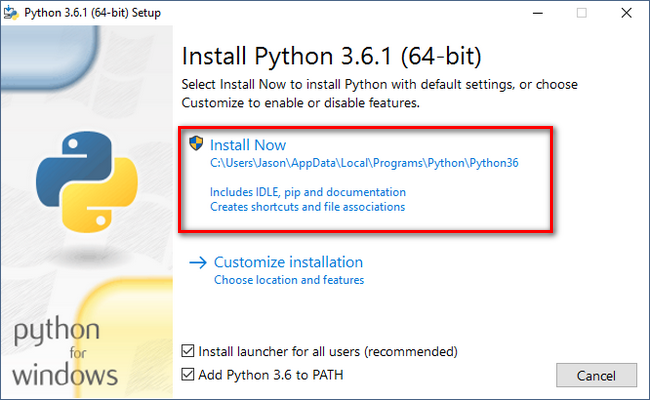
Next, you have a decision to make. Clicking the “Disable path length limit” option remove
s the limitation on the MAX_PATH variable. This change won’t break anything, but will
allow Python to use long path names. Since many Python programmers are working in
Linux and other *nix systems where path name length isn’t an issue, turning this on in
advance can help smooth over any path-related issues you might have while working in
Windows.

We recommend go ahead and selecting this option. If you know you don’t want to
disable the path length limit, you can just click “Close” to finish the installation. And,
if you want to read more about the issue before committing to the change, read up here.
If you’re only installing Python 3, you can use the same command line trick of typing
python -v that we used above to check that it is installed correctly and the path variable
is set. If you’re installing both versions, however, you need to make the quick tweak
found in the following section.
Adjust System Variables So You Can Access Both Python Versions
From the Command Line
This section of the tutorial is completely optional, but will allow you to quickly access
both versions of Python from the command line. After installing both versions of Python
, you may have noticed a little quirk. Even though we enabled the system path for both
Python installations, typing “python” at the command prompt only points you to Python 2.7.
The reason for this is simple: the variable (whether automatically adjusted by an
installer or manually tweaked) simply points at a directory, and every executable
in that directory becomes a command line command. If there are two directories listed
and both have a “python.exe” file in them, whichever directory is higher in the
list of variables gets used. And, if there is a variable set for the system and the user, the
system path takes precedence over the user path.
The latter is exactly what’s happening in this case: the Python 2 installer edited the system
wide variable and the Python 3 installer added a user level variable—and we can confirm
this by looking at the Windows’ environment variables.
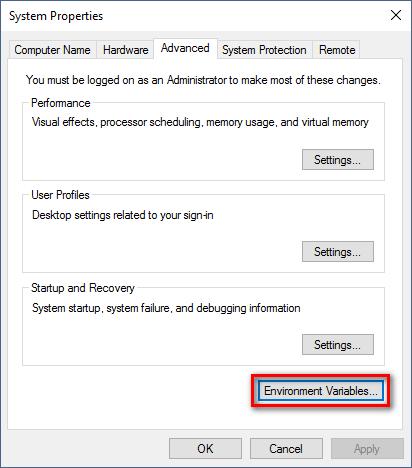
Hit Start, type “advanced system settings,” and then select the “View advanced system
settings” option. In the “System Properties” window that opens, on the “Advanced” tab, click the “Environment Variables” button.
Here, you can see Python 3 listed in the “User variables” section and Python 2 listed
in the “System variables” section.
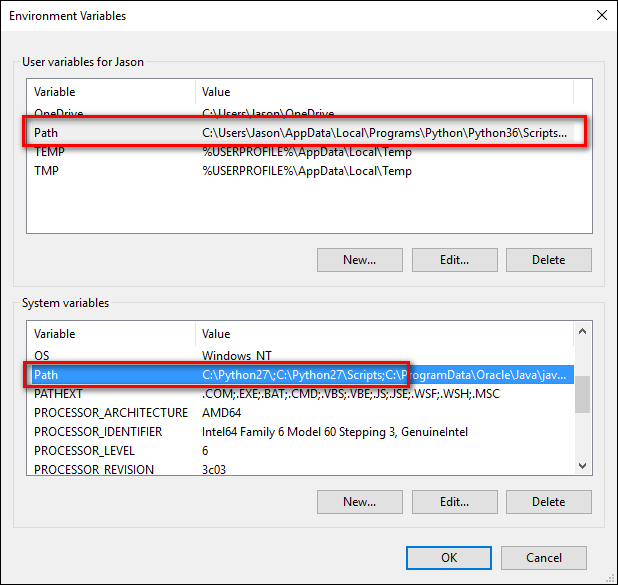
There are a few ways you can remedy this situation. The simplest (albeit the one with the
least functionality) is to just remove the entry for the version of Python you plan on
using the least. While that’s simple, it’s also not very much fun. Instead we can make
another change that will give us access to “python” for Python 2 and “python3” for
Python 3.
To do this, fire up File Manager and head to the folder where you installed Python 3
(
C:\Users\[username]\AppData\Local\Programs\Python\Python36 by default).
Make a copy of the “python.exe” file, and rename that copy (not the original) to
“python3.exe”.

Open a new command prompt (the environmental variables refresh with each new
command prompt you open), and type “python3 –version”.



When you call someone, you may hear some sound this is called ringback tone. Well, that particular sound comes from the operator of your network service. Hence you may stop it or start it according to your preference.
ReplyDeleteSetting up a Ringback tone on android comes in so many ways. That’s why we won’t let you know one specific method on how to change ringback tone on android. Hence, we design this article with so many methods and let us share those processes one by one to you.
Finally, we get to know about how to set a ringback tone on Android phones. We have shown you some of the different hacks with different mobile operator services.